From an EAN code to a finished Allegro listing
Listing a single offer on Allegro means a name, a category, a dozen or so parameters, a description and photos. For a wholesaler delivery with fifty new items, the same form has to be filled in fifty times.
Offer drafts the AI prepares when you ask for them, which is steps 1 to 4 below, are part of the Pro plan and up. Drafts that create themselves, described under "Drafts can create themselves", are part of the Business plan and up. Every draft, on every plan, is paid from the AI wallet.
In Salecare the same process starts with pasting a list of EAN codes and ends with the offer published on your Allegro account. Below you will find, step by step, what the AI does along the way, and what stays under your control. The guide "How to list an offer on Allegro with AI (offer drafts)" covers each step in more detail.
Step 1. You paste the EAN codes
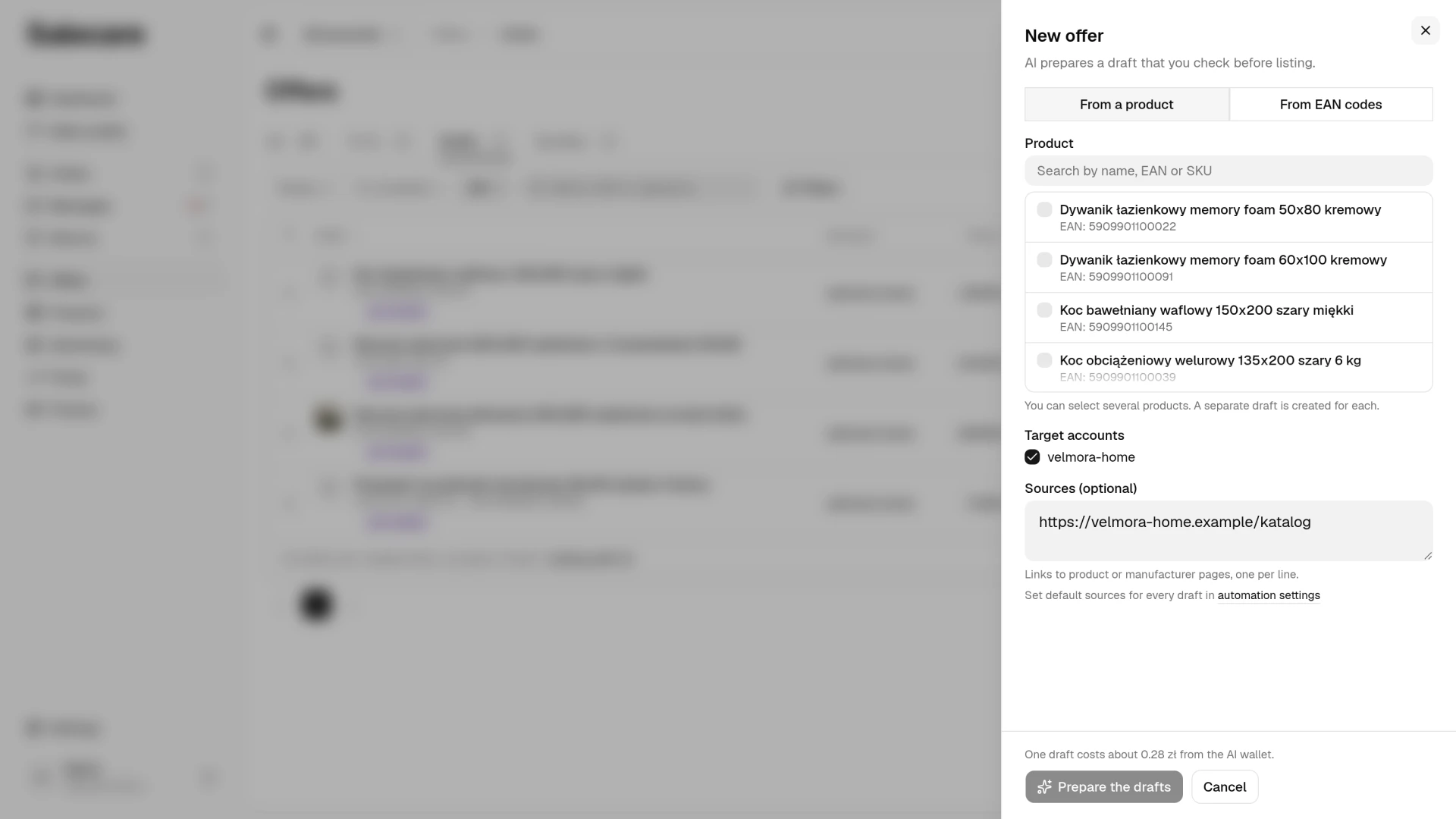
Go to Offers, click Publish an offer and in the New offer window pick From EAN codes. You paste a list of codes, one for each product you want to list. One paste holds up to 10,000 characters, about 700 EAN-13 codes. Salecare skips an invalid code and the code of a product that already has a draft, and the message after sending says how many codes it skipped.
Each code is a separate product research, paid from the AI wallet. Under the list the dialog shows how many valid codes it recognised and the estimated cost of one draft and of the whole list, before anything starts. When the wallet runs out, the AI does not write the next drafts and their badge changes to "Could not be prepared". The person who manages billing sees the wallet balance in the account menu, under the AI wallet entry. On the top bar the balance appears only once it falls to the low balance warning amount or lower, and you set that amount on the wallet page. The guide "How the AI wallet and top-ups work" covers it.
In the Target accounts field you tick the accounts you will list these offers on. The accounts with the List new offers on this account option on start ticked. With no account ticked the Prepare the drafts button is inactive.
You can add links to trusted sources such as the manufacturer's site. The AI opens them first and treats them as the most trusted source, but it also checks the data in search results, because it searches the web for every draft. The domains the AI must not use go in the Blocked domains field. You find it on the Settings, AI listing page, on the Sources and blocked domains row.
A hint for the AI, "these are power tools for workshops, emphasise the power and the warranty" for example, is set for the whole company. It goes on the Hint for the AI row on the Settings, AI listing page. The hint applies to drafts from EAN codes too. The guide "How to set the style and sections of AI descriptions" covers it. A draft meant for a single Allegro account follows that account's hint instead, when you set one in the Allegro account settings, on the AI hint for this account row. You change the hint of selected drafts on the Drafts tab of the Offers page. Select them, open More in the selection bar, click Edit and tick Change the AI hint in the Edit the selected drafts dialog. The new hint takes effect when you generate those drafts again.
If the products are already in the Salecare catalogue, you can also create an offer draft directly from a product, one at a time or for many selected at once. The catalogue may identify products by your signature. A pasted code then creates a new product just the same, and that code is also written into the product's signature field.
Step 2. The AI researches the product and builds a draft
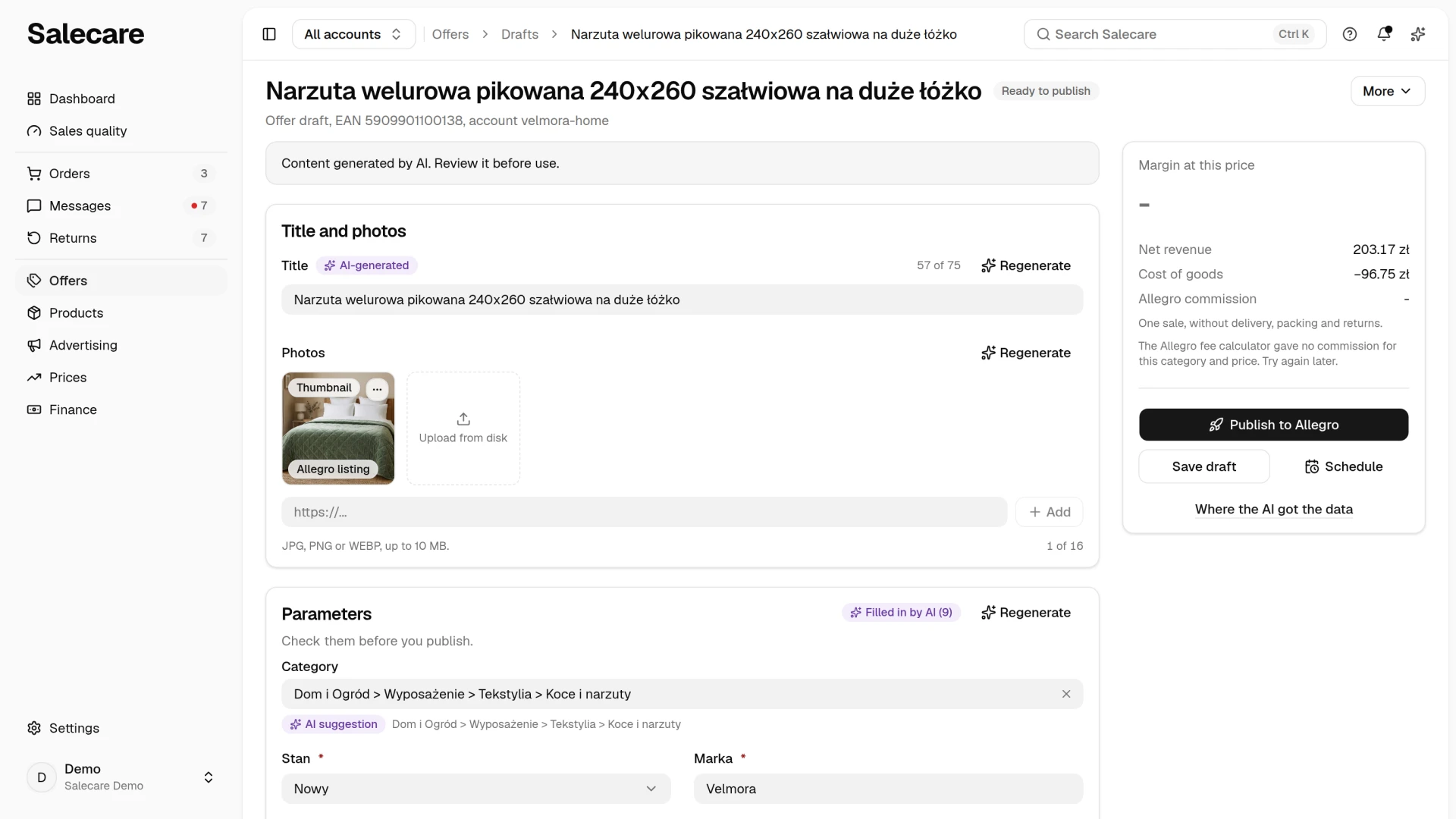
For each code the AI runs its own research. It checks the Allegro product catalogue, existing listings, manufacturer sites and search results. You see the progress live, and the draft fills in in the background, so you can carry on with other work meanwhile.
The research produces an offer draft. In it the AI fills in:
- the offer name,
- a category chosen from Allegro's real category tree,
- the parameters required in that category, the brand, EAN, dimensions or material, for example,
- a description split into sections, ready to send to Allegro,
- product photos from the Allegro catalogue and your own offers, if you switch on Let the AI pick photos on the Settings, AI listing page, on the Photos in drafts row. Photos from manufacturer pages come in once you also switch on Let the AI take photos from manufacturer pages. Both options start switched off. Without them you fill the gallery yourself, and Salecare does not list a product that is not in the Allegro catalogue without a photo,
- a selling price the AI proposes from the offers of this product on Allegro,
- the product safety information (GPSR), when it finds it in the sources.
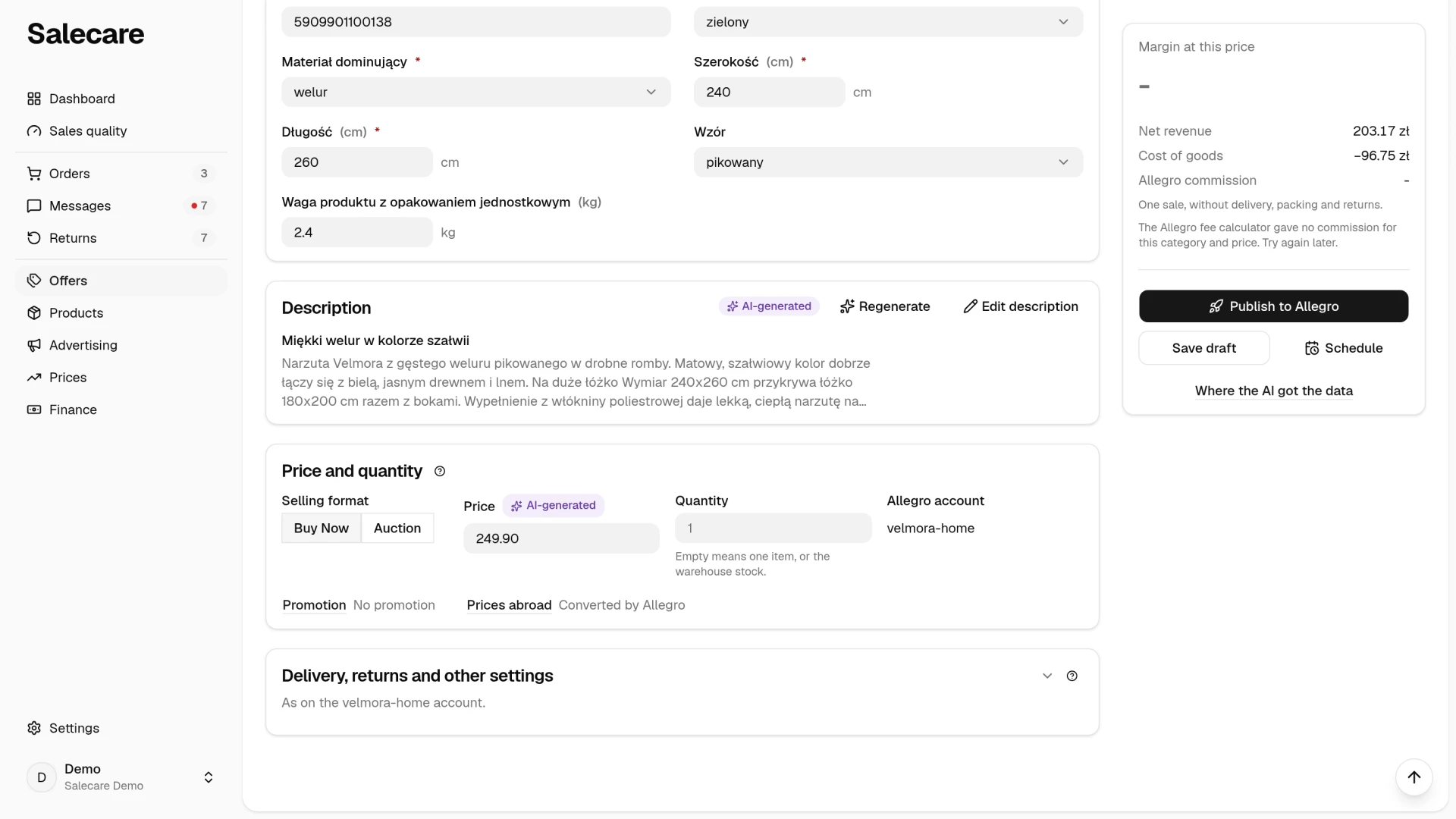
The Where the AI got the data link under the card on the right opens a panel with the list of sources the AI used, each with a badge naming its kind, which is "Manufacturer", "Listing", "Price comparison" or "EAN/GTIN database". You can check every piece of information at source. Salecare does not show the percentage the AI gives itself, because it is not a measurement.
Step 3. You review and correct
The draft opens in the offer editor with the sections Title and photos, Price and quantity, Parameters and Description, and a folded Delivery, returns and other settings card. When something is missing before publishing, the card on the right says "To fill in before publishing" and lists what is missing. The header gives the same state as the Drafts list, for example "2 things missing", and "Ready to publish" when everything is there. The parameters required by the category stand on top, and you unfold the rest with the Show optional link. The violet "Filled by AI" badge in the header of the Parameters section tells how many parameters the AI filled in that you have not changed yet. So you know what is worth checking.
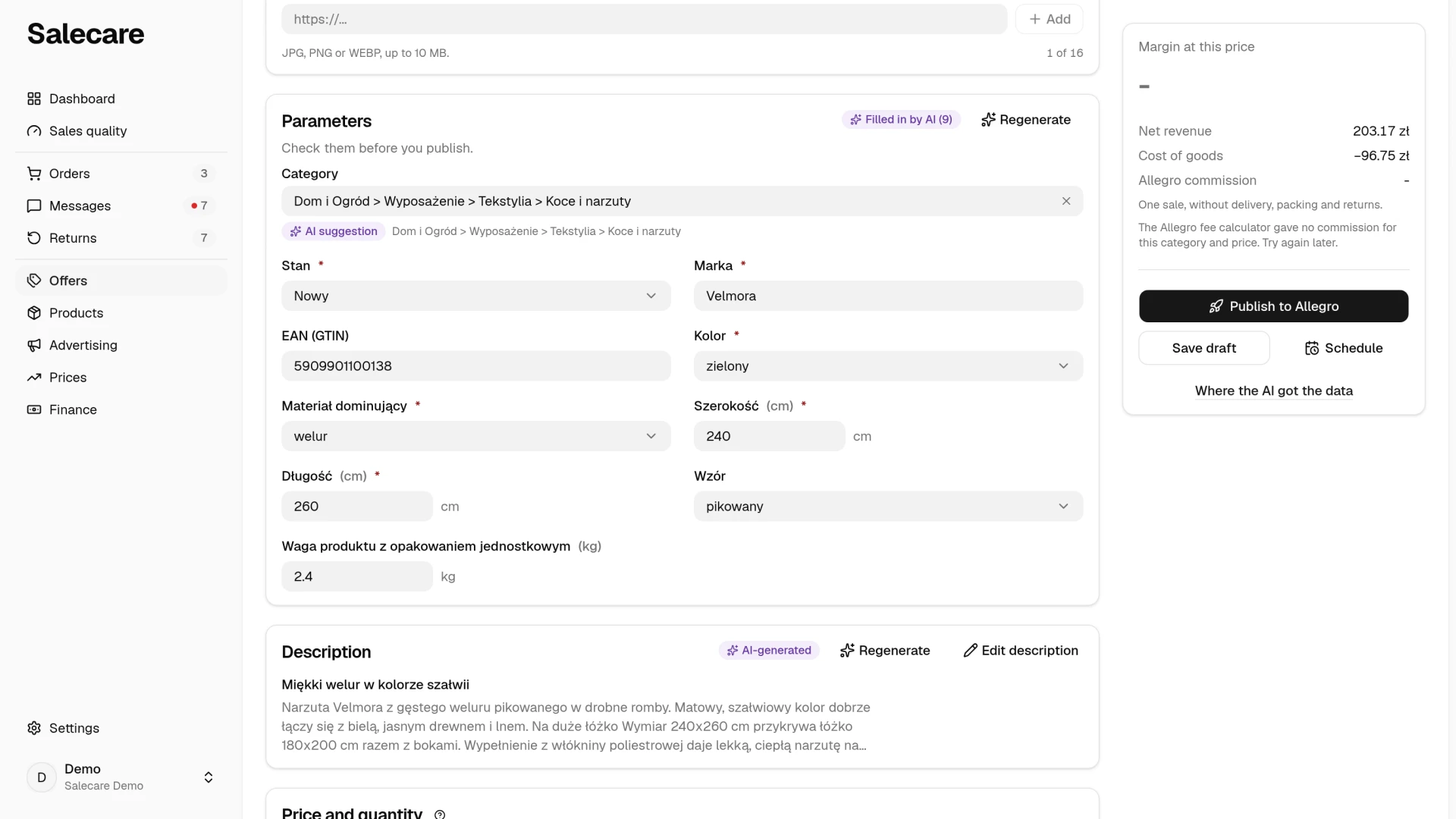
You see the description in short first, and the Edit description button opens it for editing section by section. The photos are tiles. The menu in the corner of a tile sets the thumbnail or removes the photo, and the Upload from disk tile adds your own photos.
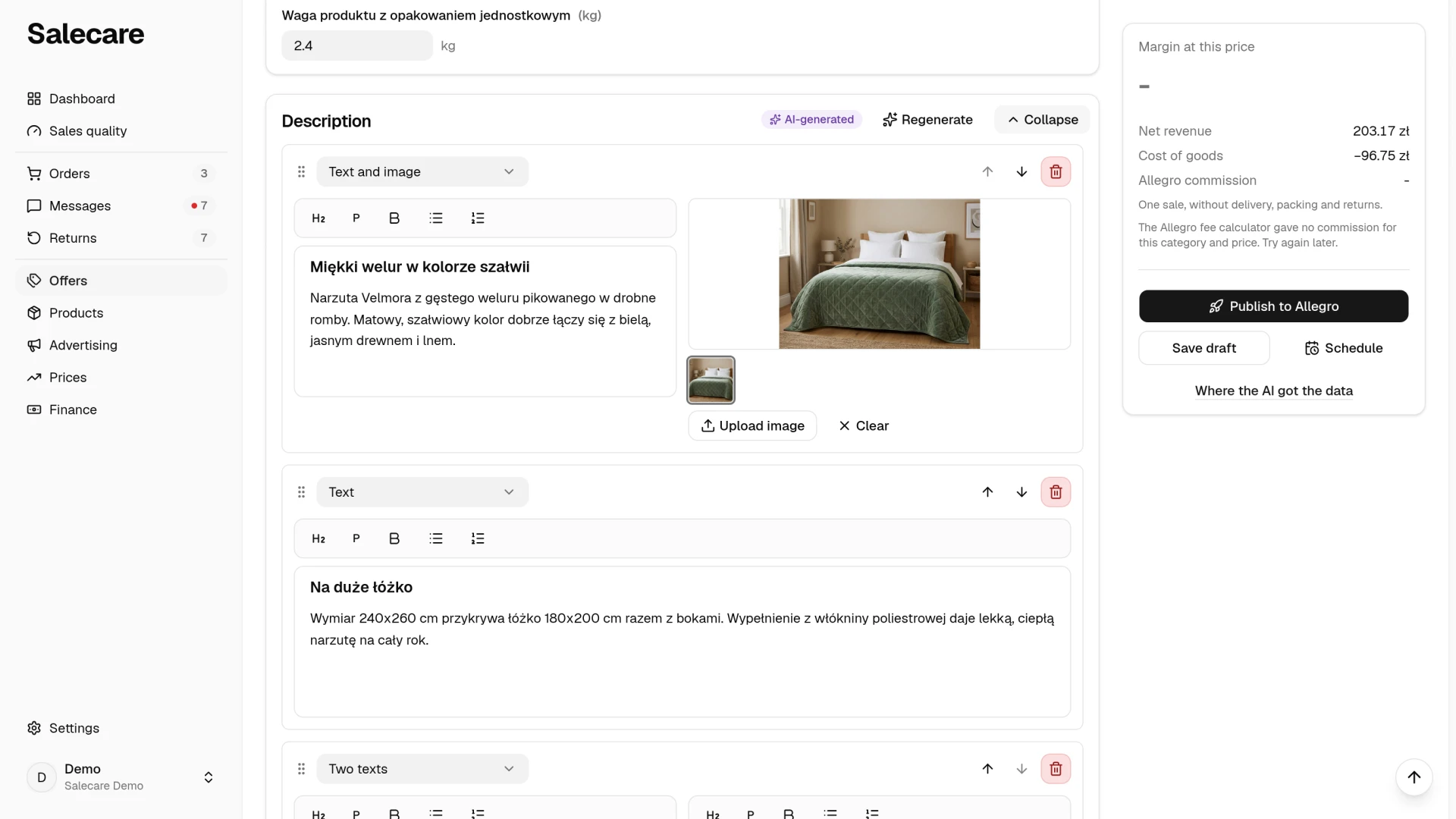
One thing always stays on your side, the product's purchase price. Salecare does not guess what the goods cost you, because the entire margin rests on that figure. A product created from an EAN code has no purchase price, so enter it on the product card before you publish. Without it Salecare cannot check whether the draft's price covers the purchase cost and the Allegro commission. Bulk publishing and automatic publication then leave the draft out and give the reason. A draft you publish on its own or schedule yourself goes out at its saved price without that check.
Step 4. You publish to Allegro
You publish a finished draft straight from Salecare, to one account or to several at once. Allegro allows at most two offers of the same product in condition "New" across all your accounts. Salecare therefore does not list a third one and says on which account the offer was not created. You list drafts one at a time or in bulk for the selected ones. You set a publication date in the draft with the Schedule button in the card on the right. The Recent publications window, opened from the More menu in the header of the Offers page, shows the latest publication result of each draft, when it reached Allegro and with what result.
Salecare does not list an offer with a blocking error in the Catalogue compliance section, without a responsible producer (GPSR), or for a product with no units left. For an account that lacks the settings Allegro requires, the delivery price list or the shipping address for example, the draft shows a list of the gaps. An offer whose price does not cover the purchase cost and the commission is not listed until you confirm the loss. Bulk publishing also skips drafts with a paid promotion. When a person without the Margins and purchase prices (view) permission publishes, Salecare does not check the price against the cost. It then notifies the owner and the people with that permission about an offer listed below cost. You see the reason for a refusal next to the draft and in the Recent publications window. The guide "How to list an offer on Allegro with AI (offer drafts)" describes all these checks.
Drafts can create themselves
Pasting codes is the fastest start, but not the only one. With the automations switched on, Salecare will prepare drafts without your involvement:
- after every product import, from a file, a URL or FTP, drafts are created for the new products, up to the per-import limit set in the settings,
- a daily review catches products that have no offer yet and prepares drafts for them, up to its own limit.
Both automations skip a product whose tracked stock has run out and a product whose EAN is already on one of your Allegro offers that has not ended. Each of these drafts is paid from the AI wallet too. The guide "How to switch on automatic offer drafts for new products" covers the settings.
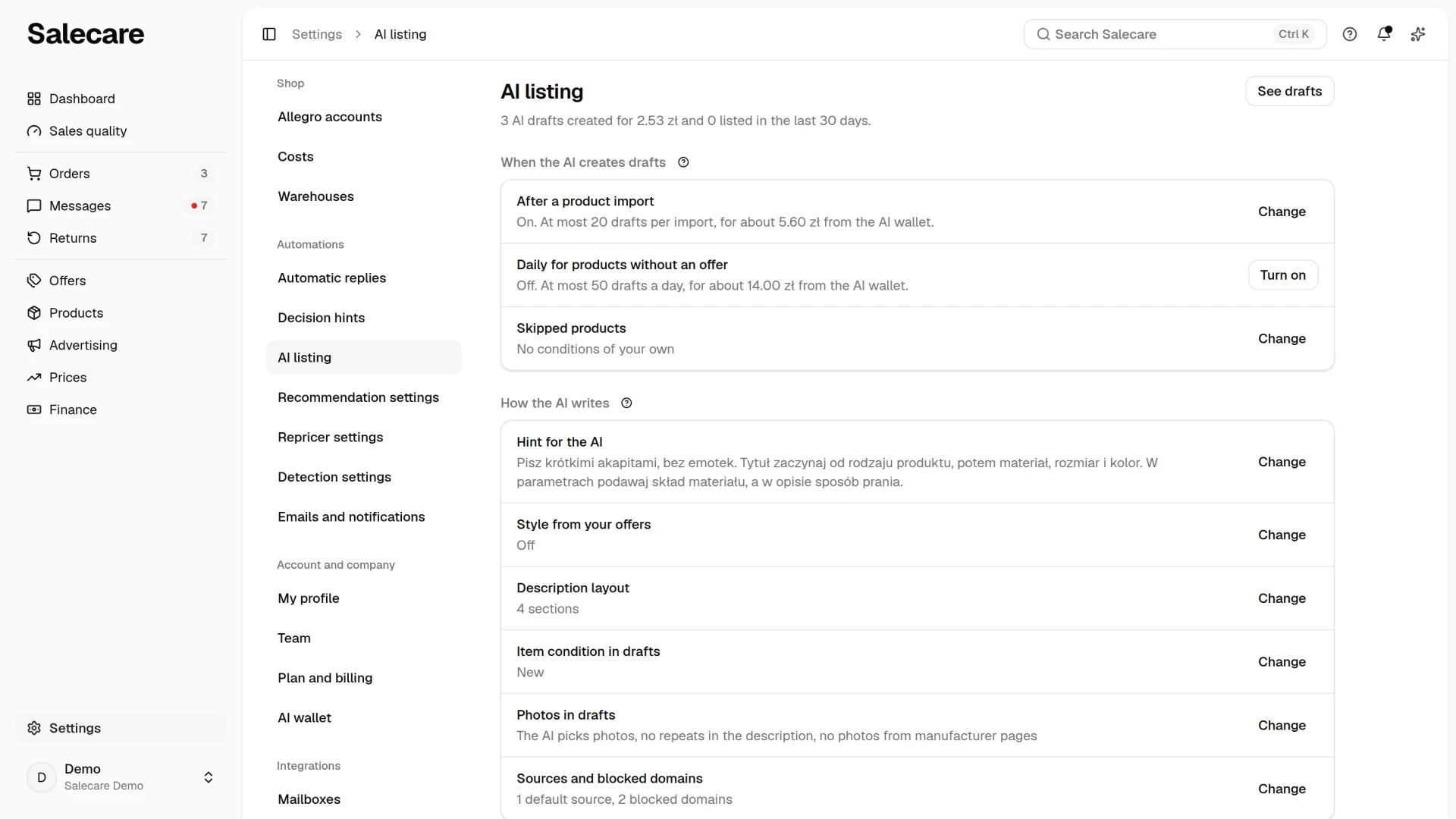
In both cases you get a notification with the number of drafts the AI started preparing. A draft is ready to check once it shows the "Ready to publish" badge on the Drafts tab. Creating drafts lists nothing on Allegro by itself. The decision to publish is yours, unless you turn on the Schedule and publish AI drafts automatically row in the Allegro account settings. Then the finished AI drafts that point only at accounts with this option are listed without asking for confirmation. The guide "How to schedule automatic offer publication" covers it.
This automation is part of the Business plan and up. On the Pro plan both automations can be turned on, but each carries a padlock naming the plan, and until then nothing changes.
What stays on your side
With a list of EAN codes, listing fifty new products comes down to pasting the list, filling in the purchase prices and the photos, reviewing the drafts and publishing. The AI fills in the forms, and you make the decisions. Every draft is paid from the AI wallet, and the New offer window states the estimated cost of the whole list before you click Prepare the drafts.